For firm admins and staff
Law firm guide
How to bring data in from TaxAppealPro, invite clients, manage logins, and handle documents.
Getting data in from TaxAppealPro
The portal shows whatever is in your latest TaxAppealPro export. Re-importing updates records in place, so you can run it as often as you like.
- 1
Export the results query from TaxAppealPro
Export the results query as an Excel (.xlsx) file: one row per property per tax year, with the standard column headings. Internal columns such as staff assignment or referring attorney are ignored and never stored in the portal.
- 2
Upload it on the Imports page and review the preview
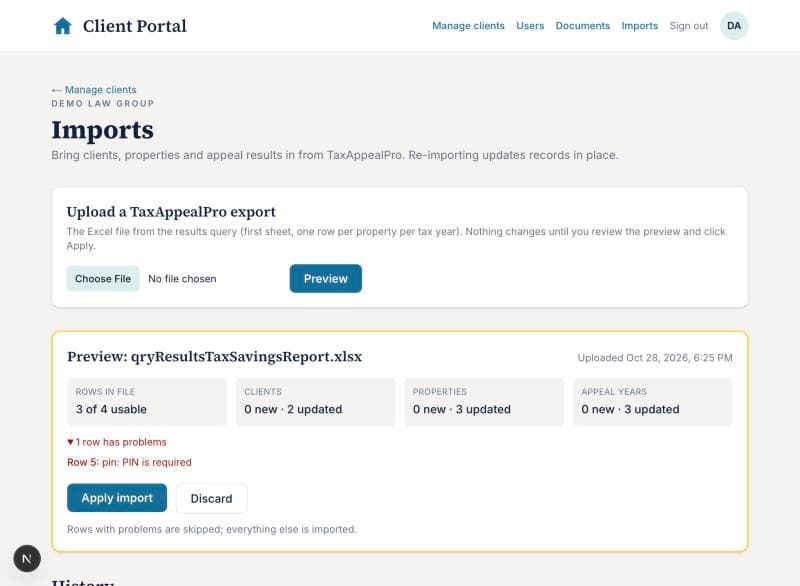
Open Imports in the top bar, choose the file and click Preview. Nothing changes yet. The preview tells you how many rows are usable and how many clients, properties and appeal years would be added or updated. Rows with problems are listed with the row number from your spreadsheet.
- 3
Apply or discard
Click Apply import to bring the data in, or Discard to throw the file away. Rows with problems are skipped; everything else goes in. The History list below records every import with who ran it.
Inviting clients
- 4
Find the client on Manage clients
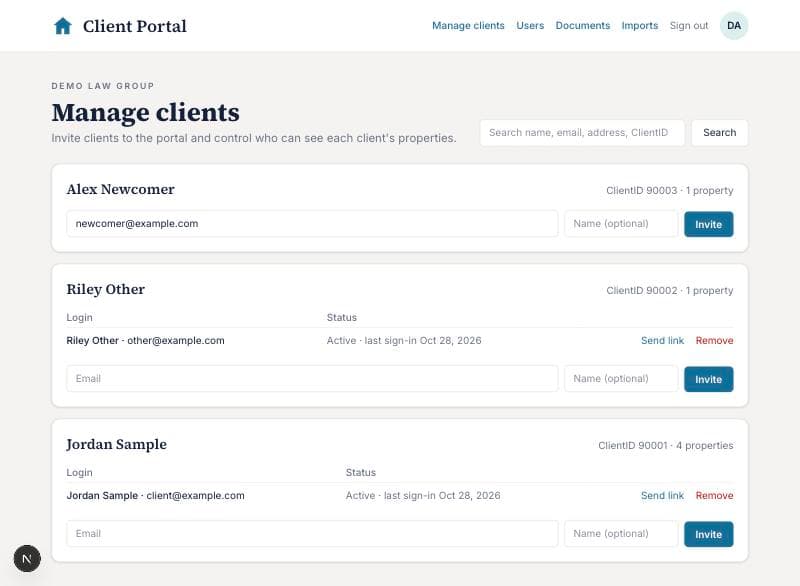
Clients appear here automatically after an import. Use the search box to find one by name, email, address or TaxAppealPro ClientID.
- 5
Invite a person to that client
Enter their email (the one from TaxAppealPro is pre-filled when there's no login yet), optionally a name, and click Invite. They receive an email with a sign-in link.
A spouse, business partner or bookkeeper can be invited to the same client; each gets their own login. One person can also be invited to several clients, for example an owner with properties under two LLCs.
- 6
Send link and Remove
Send link emails a fresh sign-in link, handy when a client says the email never arrived. Remove takes away that login's access to the client; if it was their only client, the login is disabled and signed out immediately.
Managing logins and viewing as a client
Firm admins have a Users page. Staff accounts see everything else but not this page.
- 7
The Users page
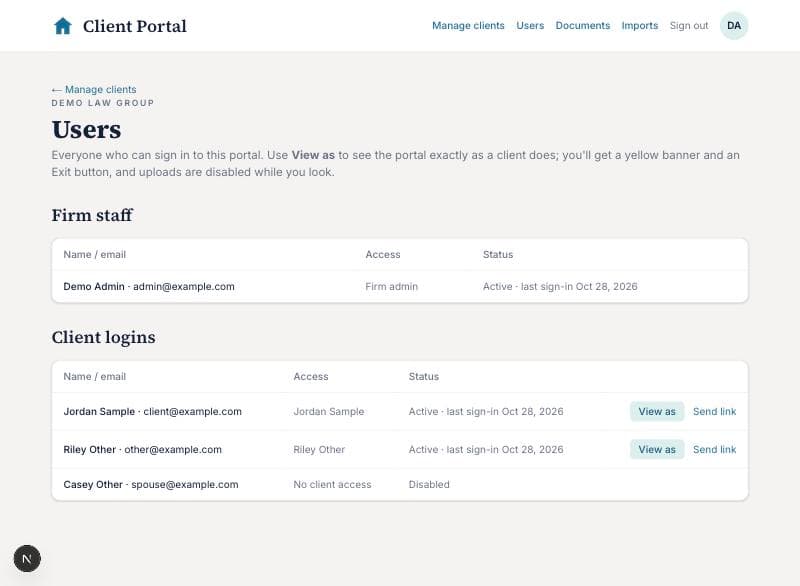
Users lists your firm's staff logins and every client login, with their status (invited, active with last sign-in, or disabled) and which clients each login can see.
- 8
View the portal as a client
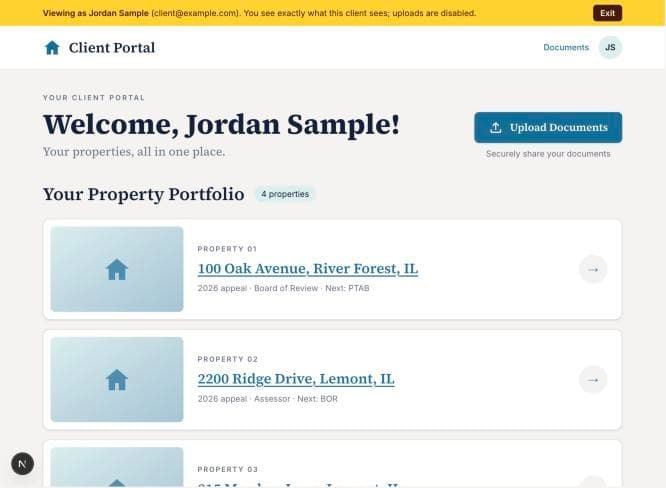
Click View as next to a client login to see the portal exactly as that person does: their properties, results and documents. A yellow bar reminds you whose view you're in, and uploads are disabled while you look, so nothing can be done in the client's name.
Click Exit on the bar to return to the Users page. Viewing as a client is recorded in the activity log.
Your firm's branding
Firm admins have a Settings page. What you set there is what clients see.
- 9
Logo, color and contact details
Open Settings in the top bar. Upload your logo (PNG, JPG, WebP or SVG), pick an accent color for buttons and links, and add a tagline, website, phone and email. Save, and every page, email and the sign-in page picks it up.
Your firm also has its own portal address, shown at the bottom of the Settings page, to link from your website. The sign-in page at that address carries your branding before anyone signs in.
Requests and notifications
Use requests instead of email to ask clients for documents or information. Everything stays in one thread, and you accept what they send.
- 10
Ask a client for something
Open Requests in the top bar and use Ask a client for something: pick the client, optionally the property, say what you need and by when. The client gets an email and sees it in their portal.
- 11
Review what they send
Replies and files the client attaches appear in the request thread. Each file has Accept and Needs changes buttons with an optional note; the client is notified either way. When you have everything, click Mark complete. The request moves to Completed and the client is told nothing more is needed.
Requests clients open themselves show up in the same list, marked "Client asked" and "Waiting on you".
- 12
Notifications
The bell shows new activity for you: client replies, uploads awaiting review, and new client questions. Click one to jump to it; Mark all as read clears the badge. Every staff login also gets these by email.
Documents
- 13
See everything clients upload
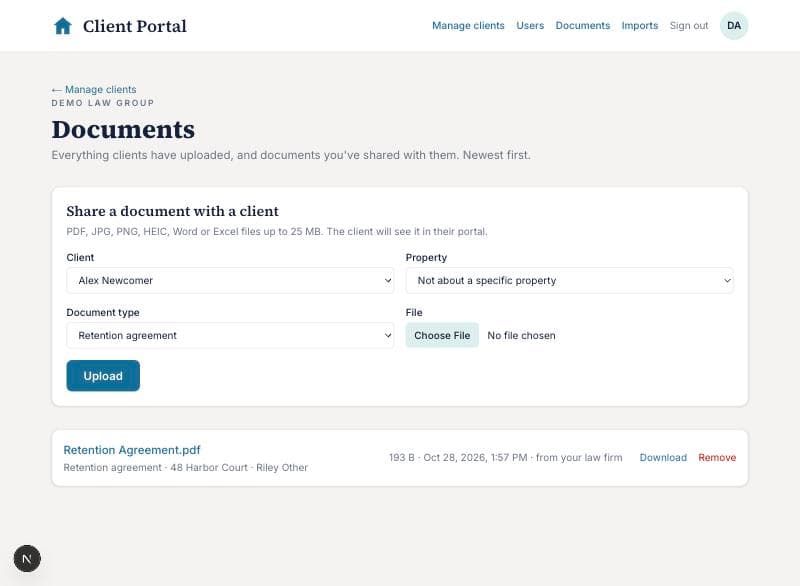
Documents in the top bar lists every file across all clients, newest first, with the client, the property it relates to, and who uploaded it. Click the filename or Download to open it.
- 14
Share a document with a client
Use the form at the top: choose the client, optionally the property, a document type, and the file. The client sees it in their portal marked "from your law firm".
- 15
Remove a document
Remove hides a document from everyone, including the client. The file itself is kept for the retention period, so this is reversible if needed.
Common questions
- A client says they didn't get the invite.
- Ask them to check spam, confirm the address on the Users or Manage clients page, then click Send link. Invites only go to addresses you've set up, so a typo means no email.
- Can I change what a client sees?
- Clients see the properties linked to the client records they have access to. Add or remove access on Manage clients; the data itself comes from your TaxAppealPro export.
- What happens if I import the same file twice?
- Nothing is duplicated. Clients, properties and appeal years are matched on their TaxAppealPro IDs and updated in place.
- Who can use View as?
- Firm admins only. Every use is written to the activity log with the admin's name and the client login viewed.
Still stuck? Contact your law firm; they can re-send links, update your email, and adjust what you can see.